Admiral v00052: Workload Shells From Your Terminal, Secret Files, Alerts, and Devices That Fix Themselves
A command-line tool with workload shell access, encrypted secret files, custom alerts on metrics and logs, Bluetooth setup and repair from the browser, self-repairing updates, NVIDIA GPU support, and a fallback that gets through corporate firewalls.

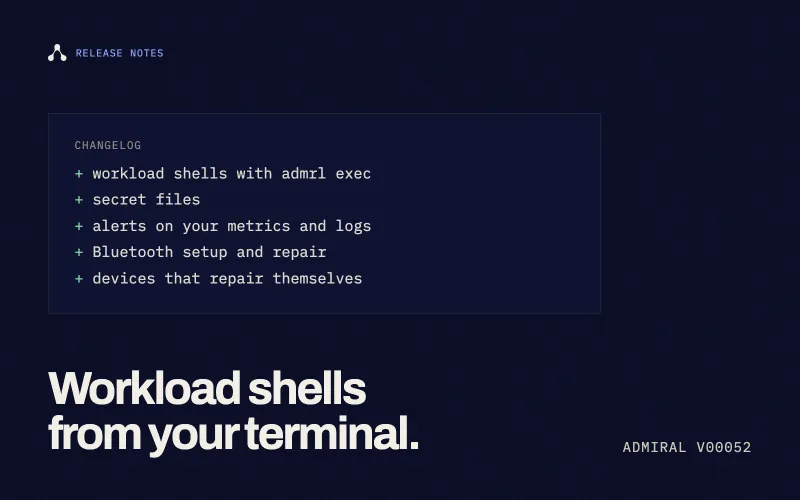
We are shipping Admiral v00052.
This is our largest release so far. The headline is a new command-line tool: admrl lets you open a shell inside a running workload you are allowed to access, straight from your terminal, with no VPN and no shared keys. Around it are a set of features that have been requested for a long time: secret files delivered to devices, alert rules on your own metrics and logs, and a way to set up or repair a device over Bluetooth from a web browser.
The device itself has also had a lot of work. Updates now repair themselves when something goes wrong, NVIDIA GPUs are supported, devices stay connected on locked-down networks, and a lost disk encryption key can be recovered without a site visit.
1. Open a Workload Shell From Your Terminal
Getting a shell on a device in the field has always meant one of two things: a VPN into the customer’s network, or a shared credential that everyone on the team ends up with. Both are slow to set up and hard to take away again.
The new admrl command-line tool replaces both.
- Sign in once:
admrl loginshows a short code. You approve it in the Admiral console, and your terminal is signed in for the day. Nothing long-lived is stored, and signing out in the console ends the terminal session immediately. - Workload shell:
admrl exec <device>opens an interactive shell inside the running workload. It uses the same workload terminal mechanism as the dashboard Terminal, without an SSH server or keys in your image. - Run a command:
admrl exec <device> -- <command>runs an executable inside the workload and returns its exit code. Your image must contain the requested command or a usable shell. - Permission per session: Connections use your Admiral identity and require workload execution permission for the target device. Fleet remote access must be enabled.
This is workload-scoped access, not a host login. Host SSH is not part of the customer remote-access offering; platform administration belongs to Admiral. Dashboard Terminal visibility depends on the current dashboard access rules.
Builds are available for macOS (Apple silicon and Intel), Linux (x86-64 and ARM64) and Windows.
2. Secret Files
Workloads need certificates, API tokens and config files that should never be baked into a container image. Until now there was no good way to get those onto a device.
You can now upload secret files to a configuration (delivered to every device running it) or to a single device. You choose the path on the device, the owner and the permission bits. Files are encrypted at rest in Admiral, delivered only over the device’s authenticated link, and written to the device atomically with the exact permissions you asked for. Each device reports back whether the file is applied, unchanged or failed.
Contents are never shown again after upload, never written to logs on the device or in the cloud, and are removed from the device when it is unpaired or wiped.
3. Alerts on Your Own Metrics and Logs
Admiral already collects metrics and logs from every device. This release lets you act on them.
- Alert rules: Write a rule against metrics or logs, scoped to the whole organisation, a fleet, or a handful of devices. Preview it against live data before saving it.
- Notifications: Firing alerts appear on the dashboard with a link to the affected device or fleet, and can be sent to your webhooks as
alert.firingandalert.resolvedevents. - Telemetry section: A new Telemetry area in the console brings together an overview, a metrics explorer, log search with live tail, and your alerts and rules. Fleet and device pages have matching tabs. The old fleet metrics page now lives here.
Everything you can see is scoped to the fleets and devices you have access to, enforced on the server side.
4. Set Up or Repair a Device Over Bluetooth, From the Browser
Provisioning a device used to mean a separate app. Now it is a page in the console.
- Provision from the browser: Connect to a new device over Bluetooth, confirm the code shown on the device’s screen, set Wi-Fi or Ethernet (including static addresses and proxies), and claim it into a fleet without leaving the console.
- Repair an offline device: A claimed device that cannot reach the cloud can still be reached over Bluetooth by a technician standing next to it. You can view diagnostics and workload status, start, stop or restart the workload, switch the on-device screen, change networking, or reboot. Access uses a short-lived token issued by Admiral and bound to that one device, with the permissions that follow your role, so it works even with no network and cannot be reused elsewhere.
- On-screen confirmation: Devices with a display now show a short code that must be confirmed before credentials are exchanged, so a device cannot be set up by someone who is merely in Bluetooth range.
5. Recover a Locked Disk Without a Site Visit
Every Admiral device encrypts its disk, with the key held in the device’s TPM. If the TPM can no longer release the key, after a motherboard swap, a firmware update, or a Secure Boot change, the device used to be stuck until someone typed in the recovery key at the console.
- Remote unlock: The device now shows a one-time code on screen, and an administrator can approve the unlock from the console. A typed recovery key still works alongside it.
- Automatic key escrow: Recovery keys are sent to Admiral automatically over the device’s secure link, with retries, and removed from the device once the cloud has confirmed receipt. You no longer need to copy them down during installation.
6. Hardware Identity
Devices with a TPM now report a hardware identity at enrolment and prove it afterwards. A device that is reinstalled, re-imaged or re-claimed is linked to its previous history, so you can tell “the same hardware, reinstalled” apart from “a new device with the same name”. The console also shows each device’s Secure Boot state and which system copy it booted from.
7. Devices That Repair Themselves
Every Admiral device keeps two copies of its operating system: the one it is running, and a spare. The spare is what makes updates safe. If a new version doesn’t work, the device falls back to the one that did. That only helps if the spare is actually in good shape when you need it.
- Daily health checks: Once a day, the device checks that its spare copy is still intact. Flash storage can quietly degrade over time, and a damaged spare is a problem you would otherwise only discover at the worst possible moment.
- Automatic repair: If the spare is damaged, the device rebuilds it from the working copy. It doesn’t need a network connection to do this, so it works even on a device that is offline.
- Bad updates stay away: If an update fails to start, or produces a damaged copy, the device remembers it and won’t try to install that same update again. You won’t get a device that keeps retrying a broken update on a loop.
- Workload rollback: If a new workload configuration keeps crashing, the device rolls back to the last one that worked and tells the console which version it refused and why.
- Recovery that always works: Every reboot now goes through the device’s normal startup process, so the safety net is always in play. A hung device is also restarted by its hardware watchdog, whichever watchdog it has.
For you, this means fewer devices that need a site visit because of a failed update or worn storage. The device takes care of it and tells you what happened.
8. Stays Connected on Locked-Down Networks
Many of our customers install devices inside someone else’s building: a retail store, a hospital, a corporate office. Those networks are often locked down tightly, and the device has no say in it.
Admiral already switches between connection methods when one is struggling. v00052 adds another fallback: WebSockets, the same kind of connection a web browser uses. Firewalls and web proxies almost always let this through. If a device can’t reach Admiral any other way, it now tries this automatically, and switches back when the network allows.
Container pulls get the same treatment. When a device cannot reach its container registry directly, image pulls can be carried through Admiral instead. It is switched on per fleet, and usage is metered per fleet and per device so you can see what it costs you.
The practical upshot: fewer conversations with a customer’s IT team before a device can come online.
9. NVIDIA GPU Support
More and more edge workloads involve AI: counting people, reading number plates, spotting defects on a production line. Those workloads need a GPU.
- NVIDIA graphics cards: Workloads on devices with an NVIDIA card can now use it directly, including CUDA, with no drivers to install inside the container.
- NVIDIA Jetson Orin: Jetson Orin modules, a popular choice for AI at the edge, are now supported. Admiral checks that the drivers match the hardware before handing them to your workload, so a mismatch shows up as a clear error rather than a model that mysteriously won’t load.
You build your AI container once, and Admiral connects it to the GPU on whichever device it runs on.
10. Keep the Images You Care About
Devices have limited storage, so Admiral cleans up container images it no longer needs. Sometimes you want an image kept anyway: a known-good version to roll back to, or something a device needs to be able to run offline.
You can now pin an image through the API. Pinned images are never cleaned up automatically, and you can unpin them when you’re done. Images that shipped preloaded on a device are pinned by default, and the image list now shows which images are pinned.
11. A Power Button That Works
Previously, pressing the power button on an Admiral device did nothing. The same was true for the “Shutdown” button in virtual machine tools like Proxmox, and for remote power controls on server hardware.
All of these now shut the device down properly: running workloads are stopped cleanly, logs are sent, and data is written to disk before the power goes off. It’s a small thing, but it’s what anyone would expect, and it saves a lot of pulled power cables.
12. Workloads Keep Their Internet Connection
We fixed a bug where a workload could lose its internet connection after an update, or after its network settings were changed from the cloud, until someone restarted it by hand. We also added a safeguard: Admiral now checks every 30 seconds that each workload’s network connection is healthy, and repairs it on the spot if it isn’t.
13. Easier Troubleshooting On Site
When a technician is standing in front of a device, they need to see what’s going on without the workload taking over the screen.
- Diagnostics mode: Hold the Ctrl key on an attached keyboard while the device starts, and it boots without starting its workload. You get a clean device to inspect, and the workload starts normally on the next boot.
- A dashboard that stays put: The device’s status screen now has its own display, separate from workloads that use the screen. Technicians can always switch back to it.
- A new local console: An opt-in graphical console with a boot splash, device status, a pairing QR code, Wi-Fi setup and diagnostics. It shows the device and fleet names you set in the dashboard, so a technician can confirm they are looking at the right box.
- More detail: The diagnostics screen shows extra information for support, including which version of Admiral is running and how the device last started.
14. Getting Started, Fleet Health, and the Console
- Getting-started guide: New organisations are walked through configuration, fleet, provisioning profile and installer download, and can pick the guide up again from the dashboard at any time.
- Fleet uniformity: A new tab on each fleet shows how alike the hardware and system software across the fleet are, component by component, with the devices behind each variant. Useful for spotting the one unit that was built differently.
- Online status you can trust: Whether a device shows as online is now computed from its last heartbeat everywhere in the console and API, instead of a stored flag that could go stale. The device list’s online and offline filters now return the right devices.
- Fleet creation: Pick a configuration and group access when you create a fleet, rather than afterwards. Provisioning profile tags are now key and value pairs.
- Refresh everything: A refresh button in the header reloads every panel on the current page.
- Reconnecting: Losing your network connection no longer bounces you to the welcome screen; the console shows a reconnect notice and retries on its own.
15. Security Under the Hood
- One identity per device: Each device now talks to Admiral with credentials that can only send and receive on its own channels. A compromised device cannot read or spoof traffic for any other device. Older firmware keeps its existing permissions until it is upgraded.
- Secrets encrypted with a vault: Secret files are encrypted with a dedicated key management service before they are stored, bound to the configuration or device they belong to, so a copied record cannot be replayed elsewhere.
- Smaller service permissions: Admiral’s own cloud services lost the ability to delete or purge message streams, and the telemetry stream now has explicit retention limits.
- Gentler reconnects: Devices reconnect to the hub with randomised backoff, so a hub restart no longer brings an entire fleet back in one wave.
16. Smaller Improvements
- Wi-Fi that connects the first time: Some Wi-Fi chips claim to support the latest Wi-Fi security (WPA3) but fail to connect with it. Admiral now spots those chips and uses the widely supported WPA2 standard instead, so they connect first time.
- Workloads can own Bluetooth: A workload can ask for exclusive use of the device’s Bluetooth adapter, for products that are themselves Bluetooth devices.
- Instant hotplug: Displays, Bluetooth adapters and input devices are detected the moment they are plugged in, instead of on the next poll.
- Screenshots of desktop apps: Remote screenshots now work on workloads that run a full GNOME or KDE desktop, without anyone needing to click “allow” on screen. Screenshots of devices with several display layers now capture all of them.
- No mixed-up commands: Starting or restarting a workload while its settings are still being updated now waits and returns a clear message, instead of briefly starting the old version.
- Exact image versions are respected: If you tell a workload to run a specific version of an image, that is the version it runs, every time.
- High port numbers: Workload port mappings above 32767 are now applied correctly.
- A tidier workload card: Repairing the spare system copy no longer overwrites the workload status in the dashboard.
- Consistent time: The device clock is now always kept in UTC, which keeps log timestamps consistent between devices and the cloud.
- Locate a device: Support staff can estimate where an online device is from the Wi-Fi networks it can see, for the times a device has been moved and nobody knows where.
- More testing: This release adds a large set of new automated tests covering updates, recovery, networking, Bluetooth, the CLI and workloads, so issues are caught before they reach your devices.
Admiral Engineering
Release notes
Release notes are written by the engineers who shipped the change, and reviewed by the platform team before publishing.